Payments, Reservations & Refunds
- Confirm an offline reservation
- Accepted payment methods
- Understand LinkUp service fees
- Payment succeeds but ticket does not appear
- Failed payments and pending payments
- Refund policy overview
- How long refunds take
- What happens if an event is cancelled
- Currency handling
- Two-step checkout overview
- Checkout timer expired during payment
- Fee paid, organizer payment incomplete
Confirm an offline reservation
Public help
- Open the Organizer Panel.
- Go to orders/reservations.
- Find the pending offline cash or bank-transfer reservation.
- Confirm the reservation after payment is received.
- Do not confirm offline reservations before the organizer has verified payment.
Verification evidence
Offline Cash And Bank Transfer Browser Checkout Retest, Organizer Orders And Reservation Status.
Last verified
Verified against the staging website on 2026-06-13. Mobile apps were not tested in this pass.
Accepted payment methods
Public help
Available payment methods depend on the event and organizer settings.
- LinkUp Ticket Services fee can hand off to the configured fee provider.
- Organizer payment can hand off to PayPal when configured.
- PayPal organizer sandbox capture has been verified end to end.
- Cash and bank transfer appear only when enabled for the event.
- Some card-provider success testing requires secure provider iframe/account access; do not document card capture as fully verified unless that access is used.
Verification evidence
Attendee Two-Step Checkout And LinkUp Fee Handoff, Paid Checkout Promo And Two-Step Order Pricing, Offline Cash And Bank Transfer Browser Checkout Retest, PayPal Sandbox Organizer Capture Retest.
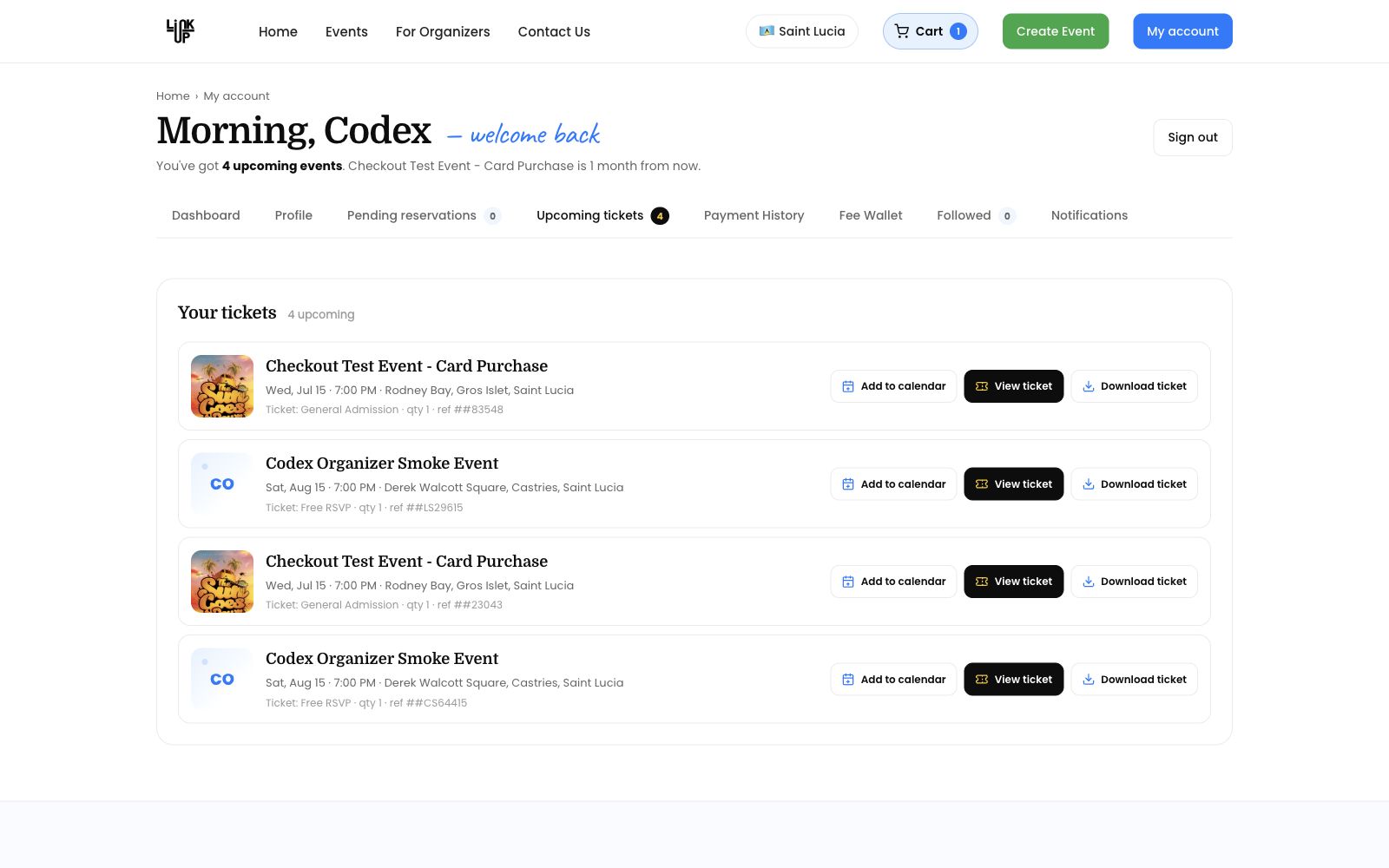
Website screenshot
Last verified
Verified against the staging website on 2026-06-13. Mobile apps were not tested in this pass.
Understand LinkUp service fees
Public help
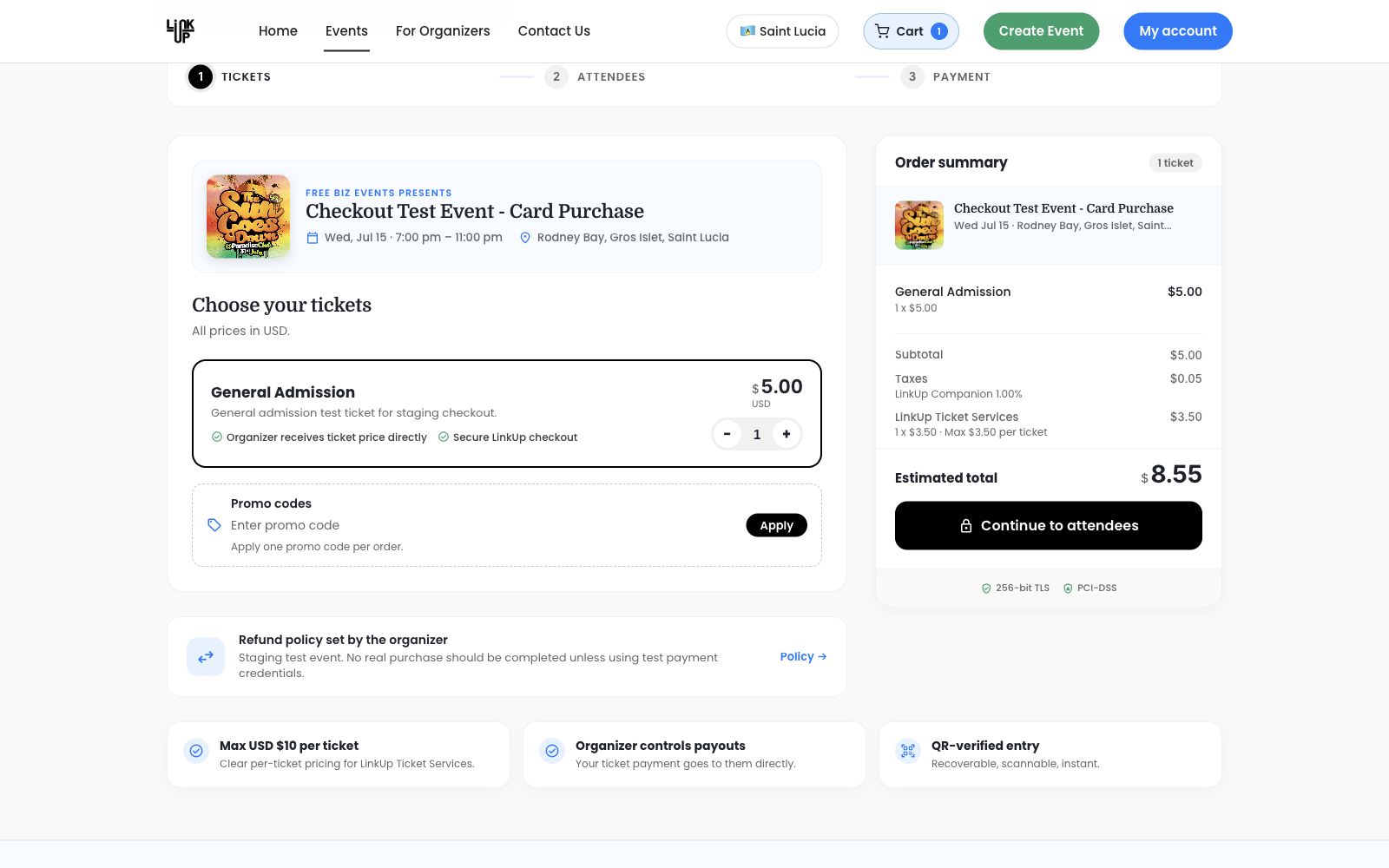
LinkUp Ticket Services fees are separate from organizer ticket money in paid two-step checkout. Some free tickets may still include a LinkUp Ticket Services fee. The ticket price is $0.00, but the service fee covers ticket delivery, QR verification, checkout support, ticket recovery, and event updates.
Promo codes reduce eligible ticket prices. They do not reduce LinkUp Ticket Services fees unless the promo specifically says so.
Verification evidence
Free Ticket Checkout And LinkUp Fee, Paid Checkout Promo And Two-Step Order Pricing.
Website screenshot
Last verified
Verified against the staging website on 2026-06-13. Mobile apps were not tested in this pass.
Payment succeeds but ticket does not appear
Public help
If you paid but cannot see your ticket, first check whether the full order is complete.
Check these items
- Make sure you are signed in with the same email address used at checkout.
- Open your account or ticket screen and refresh.
- Check whether the order used two-step checkout.
- If only the LinkUp Ticket Services fee was paid, complete the organizer ticket payment.
- If the checkout timer expired, start a new order if tickets are still available.
When to contact support
Contact LinkUp support if your payment provider shows a completed payment but LinkUp does not show a completed order or ticket. Include the event name, email address used at checkout, payment time, and any receipt or transaction reference.
Failed payments and pending payments
Public help
If a payment provider cannot start or a return from the provider is invalid, LinkUp shows a checkout message and restores the cart where possible. A pending or failed payment does not create a valid ticket.
For two-step paid checkout
- A LinkUp fee payment alone is not enough for entry.
- The organizer payment must also complete.
- If organizer payment fails or is not completed, the order remains incomplete.
- PayPal organizer sandbox capture is verified end to end.
- Card-provider capture should remain marked as requiring secure provider access unless separately tested.
Verification evidence
Fee Paid, Organizer Payment Incomplete, And Failed Return Handling, PayPal Sandbox Organizer Capture Retest.
Last verified
Verified against the staging website on 2026-06-13. Mobile apps were not tested in this pass.
Refund policy overview
Public help
Summarize how refunds should be requested, reviewed, processed, and tracked.
Public guidance
This page should stay plain-language and avoid promising live payment behavior until the provider flow is verified in test mode.
Internal note
Use Stripe, payout, checkout fee, reservation, and refund audit records to verify exact behavior before publishing.
Implementation status
| Expected behavior | Status | Surface | Manual check |
|---|---|---|---|
| Payment or refund behavior is documented accurately. | Needs Verification | Checkout / Admin / Organizer | Run a test payment/refund path where safe. |
| Known uncertainty is marked. | Implemented | BookStack | Check for verification notes before publishing. |
Verification checklist
- Check the relevant provider in test mode.
- Confirm order, ticket, and refund records.
- Confirm attendee-facing wording.
Gaps / notes
- Payment docs are high-stakes and must be reviewed before publication.
- Do not publish provider-specific steps until live configuration is confirmed.
How long refunds take
Public help
Explain refund timing expectations without promising bank processing times.
Public guidance
This page should stay plain-language and avoid promising live payment behavior until the provider flow is verified in test mode.
Internal note
Use Stripe, payout, checkout fee, reservation, and refund audit records to verify exact behavior before publishing.
Implementation status
| Expected behavior | Status | Surface | Manual check |
|---|---|---|---|
| Payment or refund behavior is documented accurately. | Needs Verification | Checkout / Admin / Organizer | Run a test payment/refund path where safe. |
| Known uncertainty is marked. | Implemented | BookStack | Check for verification notes before publishing. |
Verification checklist
- Check the relevant provider in test mode.
- Confirm order, ticket, and refund records.
- Confirm attendee-facing wording.
Gaps / notes
- Payment docs are high-stakes and must be reviewed before publication.
- Do not publish provider-specific steps until live configuration is confirmed.
What happens if an event is cancelled
Public help
Explain the payment and ticket impact of cancelled events.
Public guidance
This page should stay plain-language and avoid promising live payment behavior until the provider flow is verified in test mode.
Internal note
Use Stripe, payout, checkout fee, reservation, and refund audit records to verify exact behavior before publishing.
Implementation status
| Expected behavior | Status | Surface | Manual check |
|---|---|---|---|
| Payment or refund behavior is documented accurately. | Needs Verification | Checkout / Admin / Organizer | Run a test payment/refund path where safe. |
| Known uncertainty is marked. | Implemented | BookStack | Check for verification notes before publishing. |
Verification checklist
- Check the relevant provider in test mode.
- Confirm order, ticket, and refund records.
- Confirm attendee-facing wording.
Gaps / notes
- Payment docs are high-stakes and must be reviewed before publication.
- Do not publish provider-specific steps until live configuration is confirmed.
Currency handling
Public help
Explain how LinkUp displays currency and why XCD or other currencies may appear.
Public guidance
This page should stay plain-language and avoid promising live payment behavior until the provider flow is verified in test mode.
Internal note
Use Stripe, payout, checkout fee, reservation, and refund audit records to verify exact behavior before publishing.
Implementation status
| Expected behavior | Status | Surface | Manual check |
|---|---|---|---|
| Payment or refund behavior is documented accurately. | Needs Verification | Checkout / Admin / Organizer | Run a test payment/refund path where safe. |
| Known uncertainty is marked. | Implemented | BookStack | Check for verification notes before publishing. |
Verification checklist
- Check the relevant provider in test mode.
- Confirm order, ticket, and refund records.
- Confirm attendee-facing wording.
Gaps / notes
- Payment docs are high-stakes and must be reviewed before publication.
- Do not publish provider-specific steps until live configuration is confirmed.
Two-step checkout overview
Public help
Two-step checkout separates the LinkUp service fee from the organizer ticket payment.
Step 1: LinkUp Ticket Services
This fee is paid to LinkUp for ticket delivery, QR verification, checkout support, ticket recovery, and event updates.
Step 2: Organizer Ticket Payment
This payment covers the ticket price and any organizer-related charges. Ticket funds go to the organizer.
Completion rule
The ticket is issued only after both steps are confirmed before the order expires and inventory remains available.
Checkout timer expired during payment
Public help
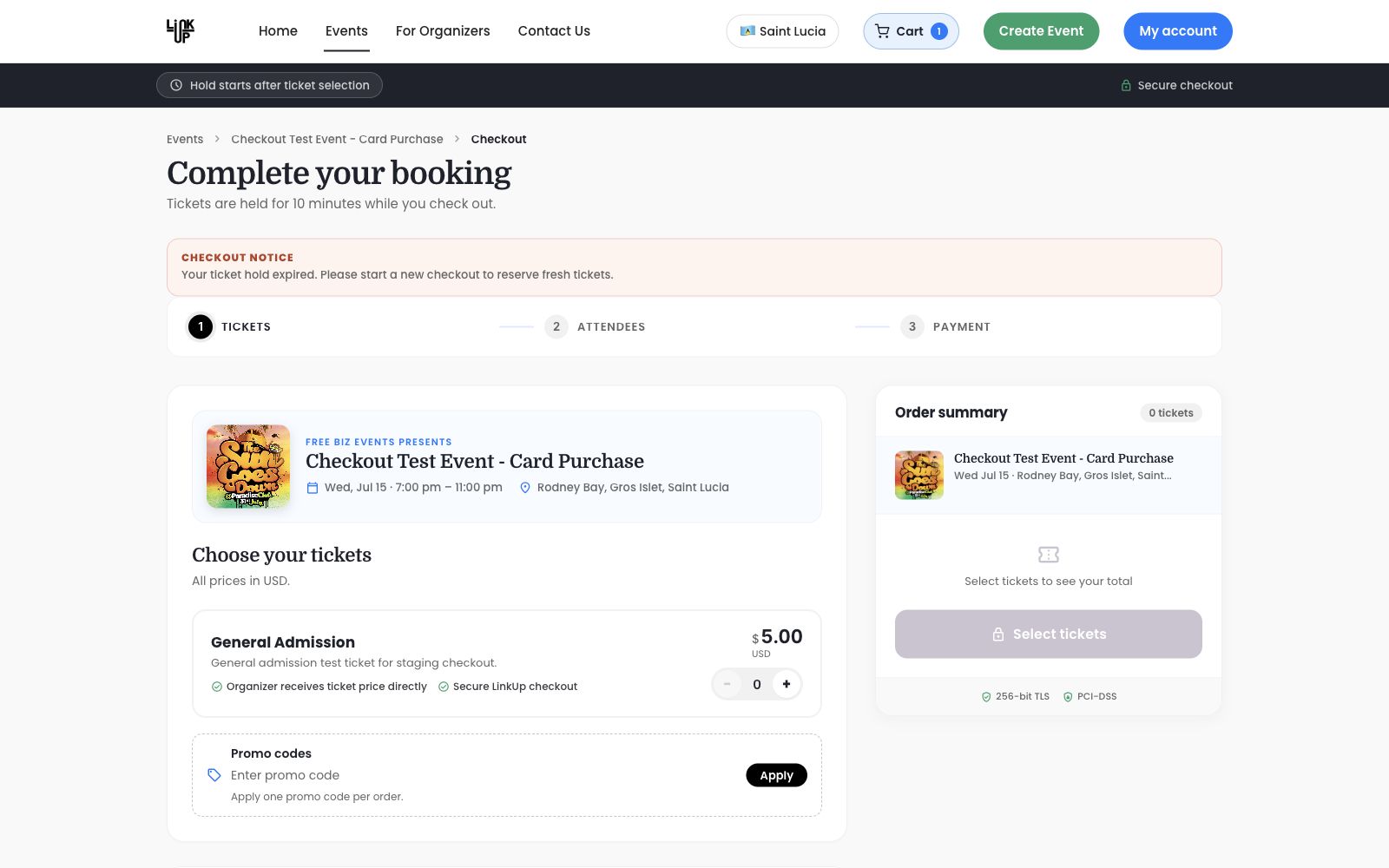
If the checkout timer expires during payment, LinkUp releases the ticket hold. The expired checkout page shows an expired-hold notice and invites the attendee to start a fresh checkout if tickets remain available.
If the LinkUp fee was paid but organizer payment did not complete, the attendee still does not have a valid ticket. Support may need the order reference and payment timing to review the fee/payment state.
Verification evidence
Checkout Expiry, Expired Checkout Notice Display.
Website screenshot
Last verified
Verified against the staging website on 2026-06-13. Mobile apps were not tested in this pass.
Fee paid, organizer payment incomplete
Public help
An order is incomplete until both the LinkUp Ticket Services fee and organizer payment succeed. If the LinkUp fee is paid but the organizer payment is not complete
- Resume checkout while the hold is active.
- Complete the organizer payment before the timer expires.
- If the hold expires, start a new checkout if tickets remain.
- Contact support if you were charged and cannot complete the order.
Internal note: Staging recorded an available fee credit after a fee-paid/organizer-incomplete order expired.
Verification evidence
Fee Paid, Organizer Payment Incomplete, And Failed Return Handling.
Last verified
Verified against the staging website on 2026-06-13. Mobile apps were not tested in this pass.