Organizer Help
- Create your first event
- Verify your organizer profile
- Set up your public organizer page
- Create ticket tiers
- View ticket sales and reservations
- Add scanner users
- Publish, edit, pause, or cancel an event
- Add flyers and event images
- Set up payments and payouts
- Enable offline reservations
- Create promo codes
- Export attendee lists
- Claim a curated event from LinkUp Discover
- Handle event cancellations and refund expectations
- Manage organizer roles and team access
- Write better event descriptions
- Use free tickets vs paid tickets
- Stop or pause ticket sales
- Understand when funds reach your account
- Handle failed or pending organizer payments
- Share event links and promote on social media
- View event analytics and performance
- Understand Who is going
- Avoid ticket fraud
- Handle attendee disputes
- Keep your organizer account secure
- Set up PayPal for organizer ticket payments
- Understand ticket allocation and activation fees
Create your first event
Public help
- Sign in to the Organizer Panel.
- Go to Events and choose Create.
- Complete the event details, schedule, location, and ticket setup.
- Save the event.
- Public visibility depends on the event status and required LinkUp approval gates.
Internal note: Wizard overflow/generic errors remain a UX review item.
Verification evidence
Organizer Event Creation, Public Pending Event Approval Gate.
Last verified
Verified against the staging website on 2026-06-13. Mobile apps were not tested in this pass.
Verify your organizer profile
Public help
Email verification and organizer profile approval are separate.
- If email verification is required, sign-in shows a verification-link message.
- If email is verified but organizer profile approval is pending, the Organizer Panel shows an
Organizer profile verification is pendingbanner. - Paid ticketing and payout-sensitive actions may remain limited or less trusted until LinkUp approves the organizer profile.
Verification evidence
Organizer Finance Settings And Payout Validation.
Last verified
Verified against the staging website on 2026-06-13. Mobile apps were not tested in this pass.
Set up your public organizer page
Public help
Your public organizer page helps attendees confirm who is hosting an event.
- Sign in to the Organizer Panel.
- Open your profile, organization, or settings page.
[VERIFY: confirm exact menu label] - Add your organizer name, logo, bio, email, phone number, and social links.
- Use a clear logo and a short bio that explains the type of events you host.
- Save your changes.
- Open your public organizer page to confirm the profile looks correct.
Expected LinkUp behavior
LinkUp should give each organizer a public storefront/profile page that can list organizer details, events, and contact or social links.
Implementation status
| Expected behavior | Status | Surface | Manual check |
|---|---|---|---|
| Public organizer storefront routes exist. | Implemented | Public web | Open an organizer URL such as /organizers/{organizer}. |
| Organizer can edit profile content. | Needs Verification | Organizer panel | Look for profile or organization settings in /organizer. |
| Logo, bio, and contact info appear publicly. | Needs Verification | Public web | Update a test organizer profile and view the public page. |
| Team/organization profile page is fully implemented. | Partial | Organizer panel | Compare current panel to frontend audit gap list. |
Verification checklist
- Open a public organizer page.
- Update profile fields if the organizer UI exists.
- Confirm changes appear on the public page.
- Check mobile display for logo and bio.
Gaps / notes
- Frontend audit notes list Organization/Profile as missing or incomplete in the organizer panel.
- Do not publish exact profile-edit steps until the UI labels are confirmed.
Create ticket tiers
Public help
- Open the Organizer Panel.
- Go to an event's ticket section or open Tickets.
- Create free or paid ticket tiers.
- Set ticket name, quantity, price, and availability rules as needed.
- Review inventory after saving.
Verification evidence
Organizer Ticket Tier Creation, Free Ticket Checkout And LinkUp Fee.
Last verified
Verified against the staging website on 2026-06-13. Mobile apps were not tested in this pass.
View ticket sales and reservations
Public help
- Open the Organizer Panel.
- Go to Orders.
- Review paid orders, pending offline reservations, expired reservations, and order amounts.
- Order rows are scoped to the organizer.
- Use reservation/order status to decide which attendee records need action.
Verification evidence
Organizer Orders And Reservation Status, Organizer Dashboard And Orders Metrics Retest.
Last verified
Verified against the staging website on 2026-06-13. Mobile apps were not tested in this pass.
Add scanner users
Public help
- Open the Organizer Panel.
- Go to Scanners.
- Create the scanner user.
- Assign the scanner user to the correct event or events.
- Give the scanner user only the access needed for door operations.
Internal note: Add exact click-path screenshots for event selection because the control is non-obvious.
Verification evidence
Organizer Scanner Users And Assignment.
Last verified
Verified against the staging website on 2026-06-13. Mobile apps were not tested in this pass.
Publish, edit, pause, or cancel an event
Public help
Public event visibility is controlled by event status and approval gates. Approved public events where the internal status is event_status=pending should be treated as Published in user-facing copy. If an event is not approved, show Awaiting LinkUp approval.
Organizer-facing copy should say: "Your event is saved. It will become publicly ticketable after LinkUp approval." Admin/internal screens may include the technical note Internal status: pending when useful. Avoid showing Pending alone when the event is already live/public after approval.
Verification evidence
Public Pending Event Approval Gate, Event Lifecycle Visibility Gates.
Last verified
Verified against the staging website on 2026-06-13. Mobile apps were not tested in this pass.
Add flyers and event images
Public help
Strong event images help attendees recognize your event and confirm they are on the right page.
- Open your event in the Organizer Panel.
- Find the image, flyer, or gallery section.
[VERIFY: confirm exact label] - Upload a clear event flyer or hero image.
- Add gallery images if the event supports more than one image.
- Save the event.
- Preview the event page on desktop and mobile.
Expected LinkUp behavior
LinkUp should store event images safely, show them on public event pages, and keep image handling consistent between admin, organizer, and public pages.
Implementation status
| Expected behavior | Status | Surface | Manual check |
|---|---|---|---|
| Event image columns exist. | Implemented | Backend | Confirm event image fields/models exist. |
| Organizer image upload works. | Needs Verification | Organizer panel | Upload a test image to an event. |
| Images display publicly. | Needs Verification | Public web | Open the event detail page after upload. |
| Image storage is still filename-based. | Partial | Backend | Track known image-column refactor item before changing behavior. |
Verification checklist
- Upload one event image.
- Preview the event page.
- Replace the image and confirm old/new display behavior.
- Check mobile event detail display.
Gaps / notes
- Known investigation notes mention image-column refactor work.
- Recommended image size and file limits need to be confirmed before publishing.
Set up payments and payouts
Public help
The Organizer Panel finance area includes
- Checkout Gateway for manual/offline controls and checkout compatibility fields.
- Payment Settings for Stripe, PayPal, and LinkUp Ticket Allocation Billing sections.
- Payouts for payout requests and payout history.
Payout creation rejects zero-balance and over-balance requests based on paid unpaid organizer revenue.
Verification evidence
Organizer Finance Settings And Payout Validation.
Last verified
Verified against the staging website on 2026-06-13. Mobile apps were not tested in this pass.
Enable offline reservations
Public help
- Open the Organizer Panel payment/checkout settings for the event.
- Enable cash and/or bank transfer if the event should accept offline reservations.
- Set the event-specific hold time.
- The website uses the event-specific hold time, limited by the global maximum.
- Confirm payment before marking an offline reservation as paid/confirmed.
Verification evidence
Offline Cash And Bank Transfer Reservations, Offline Cash And Bank Transfer Browser Checkout Retest.
Last verified
Verified against the staging website on 2026-06-13. Mobile apps were not tested in this pass.
Create promo codes
Public help
- Open the Organizer Panel.
- Go to Promos.
- Create the promo code and choose its event/discount rules.
- Save the promo.
- Test the promo at checkout before announcing it.
Promo application worked on staging after the two-step coupon fixes.
Verification evidence
Organizer Promo Codes And Checkout Application, Paid Checkout Promo And Two-Step Order Pricing.
Last verified
Verified against the staging website on 2026-06-13. Mobile apps were not tested in this pass.
Export attendee lists
Public help
Use the Organizer Panel order/export surface to export attendee or sales data. Exports are scoped to the organizer/event. Treat exported attendee data as private and share it only with people who need it for event operations.
Verification evidence
Organizer Attendee And Sales Export.
Last verified
Verified against the staging website on 2026-06-13. Mobile apps were not tested in this pass.
Claim a curated event from LinkUp Discover
Public help
LinkUp Discover may list public events before the organizer has created a full LinkUp event. Claiming lets the real organizer take control of the event page.
- Find the curated event on LinkUp.
- Select the claim option if it is available.
[VERIFY: confirm claim UI exists] - Provide proof that you manage or own the event.
- Use an official event email, Instagram account, or other trusted proof.
- Wait for LinkUp to review the claim.
- After approval, update the event details and ticket options.
Expected LinkUp behavior
LinkUp should keep curated events separate from verified organizer-owned events until a claim is approved by the internal team.
Implementation status
| Expected behavior | Status | Surface | Manual check |
|---|---|---|---|
| Discover queue/admin resources exist. | Implemented | Admin / Curator | Open Discover Queue and Discover Search Terms resources. |
| Public claim workflow exists. | Needs Verification | Public web / Organizer | Look for claim actions on curated event pages. |
| Claim review updates ownership safely. | Needs Verification | Admin / Backend | Approve a test claim and confirm event ownership changes. |
| External ticket links can switch to LinkUp tickets. | Needs Verification | Discover / Events | Claim a curated event and test ticket-link transition. |
Verification checklist
- Create or identify a curated event.
- Find the claim action.
- Submit proof as organizer.
- Review and approve internally.
- Confirm ownership and ticket controls after approval.
Gaps / notes
- Claiming workflow may be planned rather than live.
- Source attribution and curated-vs-verified rules need internal policy pages.
Handle event cancellations and refund expectations
Public help
If an event is cancelled or materially changed, attendees need clear information about what happens next.
- Confirm the event status and reason for the change.
- Pause ticket sales before announcing the cancellation if needed.
- Prepare a clear message for attendees.
- Review refund rules for the event and payment method.
- Coordinate with LinkUp support or admin for refund processing.
[VERIFY: confirm organizer refund controls] - Keep a record of decisions, messages, and refund requests.
Expected LinkUp behavior
LinkUp should prevent further sales for cancelled events, preserve order history, and support a clear refund process for affected attendees.
Implementation status
| Expected behavior | Status | Surface | Manual check |
|---|---|---|---|
| Admin refund audit exists for Stripe. | Implemented | Admin / Backend | Confirm Stripe refund audit tables and admin visibility. |
| Organizer self-refund controls exist. | Planned | Organizer panel | Do not publish as live unless controls are confirmed. |
| Cancelled event stops future checkout. | Needs Verification | Public web / Checkout | Cancel a test event and attempt checkout. |
| Attendee communication workflow exists. | Needs Verification | Notifications / Admin | Check notification templates and event messaging options. |
Verification checklist
- Cancel a test event.
- Confirm public checkout is blocked.
- Inspect affected orders.
- Attempt a test refund path in test mode only.
- Confirm attendee notification options.
Gaps / notes
- Payments/refunds are a dedicated future deep-dive area.
- Organizer responsibilities need policy approval before public publishing.
Manage organizer roles and team access
Public help
Use team access when more than one person helps manage events, orders, scanning, or payouts.
What to do
- Open the relevant LinkUp screen or admin tool.
- Review the current event, organizer, order, or Discover record.
- Follow the documented process only after confirming the live UI labels.
[VERIFY: confirm exact screen and action labels] - Record any gap before publishing this page publicly.
Expected LinkUp behavior
LinkUp should separate organizer owner, team member, and scanner permissions so helpers only access what they need.
Implementation status
| Expected behavior | Status | Surface | Manual check |
|---|---|---|---|
| The workflow exists and matches this article. | Needs Verification | Web / Panel / App / Backend | Run the workflow with a test record. |
| Unconfirmed labels are marked for review. | Implemented | BookStack | Search for [VERIFY: before publishing. |
Verification checklist
- Confirm the exact menu item and action label.
- Test with a safe local or staging record.
- Confirm the result in the related admin, organizer, or attendee view.
- Update the status label after testing.
Gaps / notes
- This is a first-pass article and needs live UI review.
- Do not publish as final policy until product decisions are confirmed.
Write better event descriptions
Public help
A good description helps attendees understand the vibe, venue, timing, entry rules, and what is included.
What to do
- Open the relevant LinkUp screen or admin tool.
- Review the current event, organizer, order, or Discover record.
- Follow the documented process only after confirming the live UI labels.
[VERIFY: confirm exact screen and action labels] - Record any gap before publishing this page publicly.
Expected LinkUp behavior
LinkUp should give organizers enough event-description space and preview tools to publish clear event pages.
Implementation status
| Expected behavior | Status | Surface | Manual check |
|---|---|---|---|
| The workflow exists and matches this article. | Needs Verification | Web / Panel / App / Backend | Run the workflow with a test record. |
| Unconfirmed labels are marked for review. | Implemented | BookStack | Search for [VERIFY: before publishing. |
Verification checklist
- Confirm the exact menu item and action label.
- Test with a safe local or staging record.
- Confirm the result in the related admin, organizer, or attendee view.
- Update the status label after testing.
Gaps / notes
- This is a first-pass article and needs live UI review.
- Do not publish as final policy until product decisions are confirmed.
Use free tickets vs paid tickets
Public help
Free tickets are for RSVP-style access or controlled entry without payment. Paid tickets collect money before or after reservation confirmation.
What to do
- Open the relevant LinkUp screen or admin tool.
- Review the current event, organizer, order, or Discover record.
- Follow the documented process only after confirming the live UI labels.
[VERIFY: confirm exact screen and action labels] - Record any gap before publishing this page publicly.
Expected LinkUp behavior
LinkUp should clearly separate free, paid, complimentary, and reserved tickets so reports and scans stay accurate.
Implementation status
| Expected behavior | Status | Surface | Manual check |
|---|---|---|---|
| The workflow exists and matches this article. | Needs Verification | Web / Panel / App / Backend | Run the workflow with a test record. |
| Unconfirmed labels are marked for review. | Implemented | BookStack | Search for [VERIFY: before publishing. |
Verification checklist
- Confirm the exact menu item and action label.
- Test with a safe local or staging record.
- Confirm the result in the related admin, organizer, or attendee view.
- Update the status label after testing.
Gaps / notes
- This is a first-pass article and needs live UI review.
- Do not publish as final policy until product decisions are confirmed.
Stop or pause ticket sales
Public help
Pause ticket sales when capacity, venue, approval, or event details need attention before more attendees buy.
What to do
- Open the relevant LinkUp screen or admin tool.
- Review the current event, organizer, order, or Discover record.
- Follow the documented process only after confirming the live UI labels.
[VERIFY: confirm exact screen and action labels] - Record any gap before publishing this page publicly.
Expected LinkUp behavior
LinkUp should stop new checkout attempts while preserving existing orders and tickets.
Implementation status
| Expected behavior | Status | Surface | Manual check |
|---|---|---|---|
| The workflow exists and matches this article. | Needs Verification | Web / Panel / App / Backend | Run the workflow with a test record. |
| Unconfirmed labels are marked for review. | Implemented | BookStack | Search for [VERIFY: before publishing. |
Verification checklist
- Confirm the exact menu item and action label.
- Test with a safe local or staging record.
- Confirm the result in the related admin, organizer, or attendee view.
- Update the status label after testing.
Gaps / notes
- This is a first-pass article and needs live UI review.
- Do not publish as final policy until product decisions are confirmed.
Understand when funds reach your account
Public help
Payout timing depends on payment provider settlement, LinkUp review, refund risk, and payout request processing.
What to do
- Open the relevant LinkUp screen or admin tool.
- Review the current event, organizer, order, or Discover record.
- Follow the documented process only after confirming the live UI labels.
[VERIFY: confirm exact screen and action labels] - Record any gap before publishing this page publicly.
Expected LinkUp behavior
LinkUp should show organizers payout status and avoid promising funds before settlement is ready.
Implementation status
| Expected behavior | Status | Surface | Manual check |
|---|---|---|---|
| The workflow exists and matches this article. | Needs Verification | Web / Panel / App / Backend | Run the workflow with a test record. |
| Unconfirmed labels are marked for review. | Implemented | BookStack | Search for [VERIFY: before publishing. |
Verification checklist
- Confirm the exact menu item and action label.
- Test with a safe local or staging record.
- Confirm the result in the related admin, organizer, or attendee view.
- Update the status label after testing.
Gaps / notes
- This is a first-pass article and needs live UI review.
- Do not publish as final policy until product decisions are confirmed.
Handle failed or pending organizer payments
Public help
Failed or pending payments need review before an organizer treats a ticket as paid or confirmed.
What to do
- Open the relevant LinkUp screen or admin tool.
- Review the current event, organizer, order, or Discover record.
- Follow the documented process only after confirming the live UI labels.
[VERIFY: confirm exact screen and action labels] - Record any gap before publishing this page publicly.
Expected LinkUp behavior
LinkUp should make payment status clear in orders, reservations, and payout reports.
Implementation status
| Expected behavior | Status | Surface | Manual check |
|---|---|---|---|
| The workflow exists and matches this article. | Needs Verification | Web / Panel / App / Backend | Run the workflow with a test record. |
| Unconfirmed labels are marked for review. | Implemented | BookStack | Search for [VERIFY: before publishing. |
Verification checklist
- Confirm the exact menu item and action label.
- Test with a safe local or staging record.
- Confirm the result in the related admin, organizer, or attendee view.
- Update the status label after testing.
Gaps / notes
- This is a first-pass article and needs live UI review.
- Do not publish as final policy until product decisions are confirmed.
Share event links and promote on social media
Public help
Use clean event links, flyers, and accurate captions when promoting on Instagram, WhatsApp, Facebook, or email.
What to do
- Open the relevant LinkUp screen or admin tool.
- Review the current event, organizer, order, or Discover record.
- Follow the documented process only after confirming the live UI labels.
[VERIFY: confirm exact screen and action labels] - Record any gap before publishing this page publicly.
Expected LinkUp behavior
LinkUp should give each event a shareable URL and enough public detail for attendees to trust the event.
Implementation status
| Expected behavior | Status | Surface | Manual check |
|---|---|---|---|
| The workflow exists and matches this article. | Needs Verification | Web / Panel / App / Backend | Run the workflow with a test record. |
| Unconfirmed labels are marked for review. | Implemented | BookStack | Search for [VERIFY: before publishing. |
Verification checklist
- Confirm the exact menu item and action label.
- Test with a safe local or staging record.
- Confirm the result in the related admin, organizer, or attendee view.
- Update the status label after testing.
Gaps / notes
- This is a first-pass article and needs live UI review.
- Do not publish as final policy until product decisions are confirmed.
View event analytics and performance
Public help
Analytics help organizers understand sales, reservations, views, and attendee interest.
What to do
- Open the relevant LinkUp screen or admin tool.
- Review the current event, organizer, order, or Discover record.
- Follow the documented process only after confirming the live UI labels.
[VERIFY: confirm exact screen and action labels] - Record any gap before publishing this page publicly.
Expected LinkUp behavior
LinkUp should provide basic event performance data without exposing private attendee information unnecessarily.
Implementation status
| Expected behavior | Status | Surface | Manual check |
|---|---|---|---|
| The workflow exists and matches this article. | Needs Verification | Web / Panel / App / Backend | Run the workflow with a test record. |
| Unconfirmed labels are marked for review. | Implemented | BookStack | Search for [VERIFY: before publishing. |
Verification checklist
- Confirm the exact menu item and action label.
- Test with a safe local or staging record.
- Confirm the result in the related admin, organizer, or attendee view.
- Update the status label after testing.
Gaps / notes
- This is a first-pass article and needs live UI review.
- Do not publish as final policy until product decisions are confirmed.
Understand Who is going
Public help
Who is going should help organizers understand attendance or interest without confusing paid tickets with RSVPs.
What to do
- Open the relevant LinkUp screen or admin tool.
- Review the current event, organizer, order, or Discover record.
- Follow the documented process only after confirming the live UI labels.
[VERIFY: confirm exact screen and action labels] - Record any gap before publishing this page publicly.
Expected LinkUp behavior
LinkUp should distinguish interest, RSVP, pending reservation, confirmed ticket, and scanned attendee states.
Implementation status
| Expected behavior | Status | Surface | Manual check |
|---|---|---|---|
| The workflow exists and matches this article. | Needs Verification | Web / Panel / App / Backend | Run the workflow with a test record. |
| Unconfirmed labels are marked for review. | Implemented | BookStack | Search for [VERIFY: before publishing. |
Verification checklist
- Confirm the exact menu item and action label.
- Test with a safe local or staging record.
- Confirm the result in the related admin, organizer, or attendee view.
- Update the status label after testing.
Gaps / notes
- This is a first-pass article and needs live UI review.
- Do not publish as final policy until product decisions are confirmed.
Avoid ticket fraud
Public help
Protect ticket sales by using official LinkUp checkout, scanner accounts, QR validation, and safe refund handling.
What to do
- Open the relevant LinkUp screen or admin tool.
- Review the current event, organizer, order, or Discover record.
- Follow the documented process only after confirming the live UI labels.
[VERIFY: confirm exact screen and action labels] - Record any gap before publishing this page publicly.
Expected LinkUp behavior
LinkUp should reduce ticket fraud through QR codes, duplicate scan protection, roles, and order history.
Implementation status
| Expected behavior | Status | Surface | Manual check |
|---|---|---|---|
| The workflow exists and matches this article. | Needs Verification | Web / Panel / App / Backend | Run the workflow with a test record. |
| Unconfirmed labels are marked for review. | Implemented | BookStack | Search for [VERIFY: before publishing. |
Verification checklist
- Confirm the exact menu item and action label.
- Test with a safe local or staging record.
- Confirm the result in the related admin, organizer, or attendee view.
- Update the status label after testing.
Gaps / notes
- This is a first-pass article and needs live UI review.
- Do not publish as final policy until product decisions are confirmed.
Handle attendee disputes
Public help
Disputes can involve payment, refunds, duplicate scans, event changes, or entry decisions.
What to do
- Open the relevant LinkUp screen or admin tool.
- Review the current event, organizer, order, or Discover record.
- Follow the documented process only after confirming the live UI labels.
[VERIFY: confirm exact screen and action labels] - Record any gap before publishing this page publicly.
Expected LinkUp behavior
LinkUp should preserve records that help organizers and admins review disputes fairly.
Implementation status
| Expected behavior | Status | Surface | Manual check |
|---|---|---|---|
| The workflow exists and matches this article. | Needs Verification | Web / Panel / App / Backend | Run the workflow with a test record. |
| Unconfirmed labels are marked for review. | Implemented | BookStack | Search for [VERIFY: before publishing. |
Verification checklist
- Confirm the exact menu item and action label.
- Test with a safe local or staging record.
- Confirm the result in the related admin, organizer, or attendee view.
- Update the status label after testing.
Gaps / notes
- This is a first-pass article and needs live UI review.
- Do not publish as final policy until product decisions are confirmed.
Keep your organizer account secure
Public help
Organizer accounts can control events, orders, payouts, and attendee data, so they need strong security habits.
What to do
- Open the relevant LinkUp screen or admin tool.
- Review the current event, organizer, order, or Discover record.
- Follow the documented process only after confirming the live UI labels.
[VERIFY: confirm exact screen and action labels] - Record any gap before publishing this page publicly.
Expected LinkUp behavior
LinkUp should support secure authentication, role separation, and account-change review for sensitive actions.
Implementation status
| Expected behavior | Status | Surface | Manual check |
|---|---|---|---|
| The workflow exists and matches this article. | Needs Verification | Web / Panel / App / Backend | Run the workflow with a test record. |
| Unconfirmed labels are marked for review. | Implemented | BookStack | Search for [VERIFY: before publishing. |
Verification checklist
- Confirm the exact menu item and action label.
- Test with a safe local or staging record.
- Confirm the result in the related admin, organizer, or attendee view.
- Update the status label after testing.
Gaps / notes
- This is a first-pass article and needs live UI review.
- Do not publish as final policy until product decisions are confirmed.
Set up PayPal for organizer ticket payments
Public help
PayPal can be used for organizer ticket payment when configured for the organizer/event. Use sandbox credentials only for staging or test mode, and live credentials only for production.
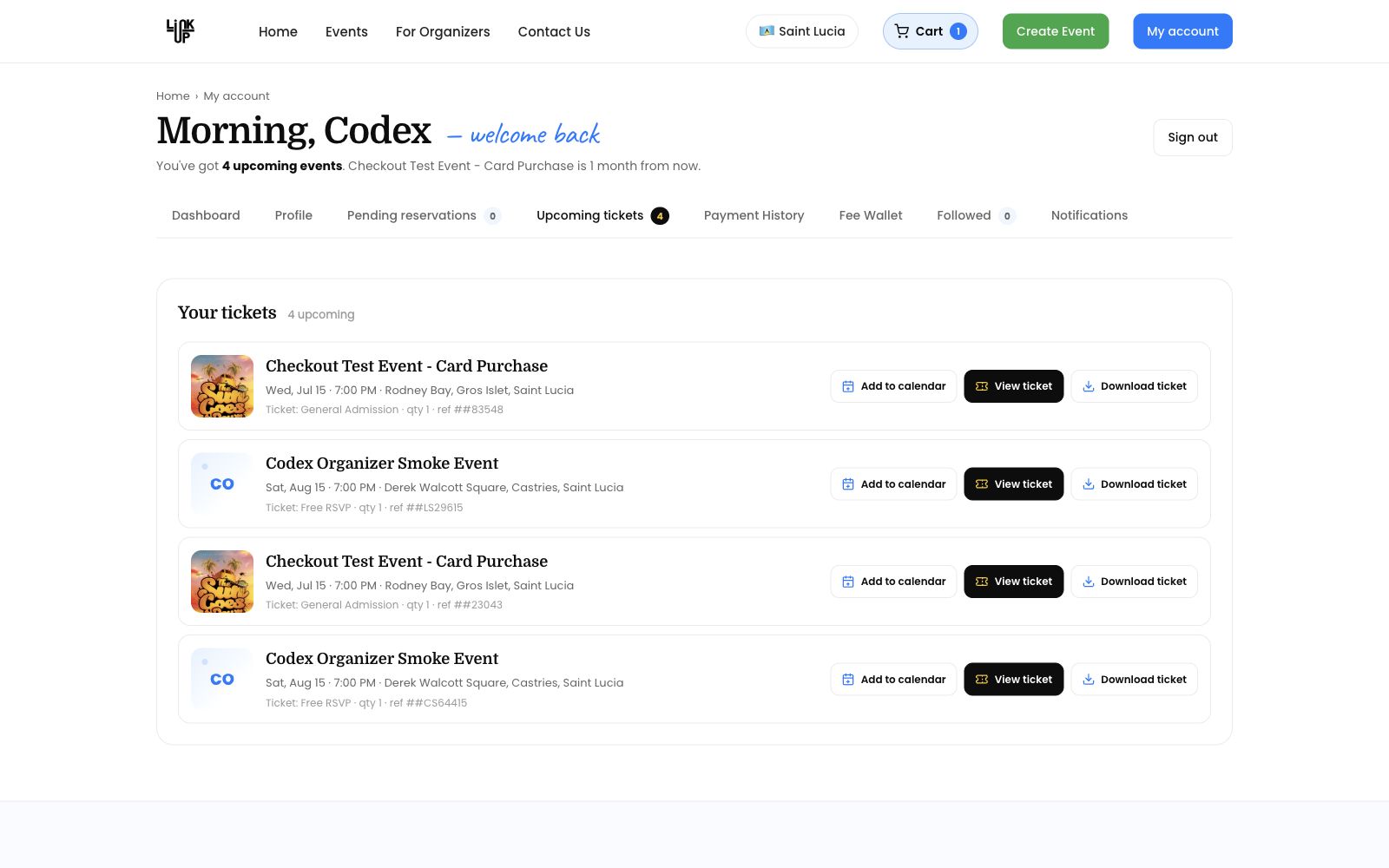
Verified staging result
- Order ID
46 - PayPal order token
280895511B671632C - Capture/payment ID
4YJ70984HF6618402 - Ticket child ID
53 - Result: organizer payment paid and ticket issued.
Verification evidence
Fee Paid, Organizer Payment Incomplete, And Failed Return Handling, PayPal Sandbox Organizer Capture Retest.
Website screenshot
Last verified
Verified against the staging website on 2026-06-13. Mobile apps were not tested in this pass.
Understand ticket allocation and activation fees
Organizer help
Paid ticket inventory may require an allocation or activation step before tickets can be sold.
What the fee covers
The ticket allocation or activation fee is paid by the organizer when activating paid ticket inventory. It is separate from the LinkUp Ticket Services fee paid by the ticket buyer during checkout.
Buyer fee vs organizer fee
- LinkUp Ticket Services Fee: paid by the ticket buyer during checkout.
- Ticket Allocation or Activation Fee: paid by the organizer when paid ticket inventory is activated.
Before publishing paid tickets
- Create the event.
- Create the paid ticket tiers.
- Confirm allocation or activation requirements.
- Confirm payment setup before promoting the event.