Attendee Help
- Create a LinkUp account
- Buy a ticket
- Sign in and reset your password
- Update your email or phone number
- Manage notifications
- Browse events by country, category, or date
- Follow organizers
- Save or show interest in an event
- Understand curated events from LinkUp Discover
- Confirm event details before attending
- Find your QR code
- Download or save your ticket
- Understand a pending reservation
- Pay by cash or bank transfer
- Understand reservation hold times
- What happens if a reservation expires
- What to bring to the door
- What happens if your QR code was already scanned
- Get help at entry
- Understand refunds and event changes
- Export or delete your account data
- Report suspicious activity
- Sign in or create an account with Google
- Verify your email after creating an account
- Password rules for creating an account
- Pay the LinkUp fee and organizer payment
- If you paid the LinkUp fee but do not have a ticket
- Use a promo code at checkout
- Pay the organizer by PayPal
Create a LinkUp account
Public help
- Open Create account from the LinkUp website.
- Enter your name, email, phone, country, and password.
- Your password must be 8 to 20 characters and include at least one lowercase letter, one uppercase letter, one number, and one of these special characters:
@ $ ! % * # ? &. - If email verification is enabled, check your inbox and use the verification link before signing in.
- If LinkUp cannot send the verification email at that moment, the website shows a message asking you to try again or contact support instead of showing a server error.
Verification evidence
Account Registration And Verification.
Last verified
Verified against the staging website on 2026-06-13. Mobile apps were not tested in this pass.
Buy a ticket
Public help
Buy a ticket from an event page when tickets are available.
- Open the event you want to attend.
- Review the event name, date, time, venue, ticket type, and organizer.
- Select the ticket quantity.
- Open checkout and enter attendee details.
- Review the ticket price, taxes, LinkUp Ticket Services fee, and estimated total.
- Choose an available payment method.
- Complete each required payment step.
- Open your account or ticket screen to view the QR code after the order is complete.
Paid card checkout
Some paid events use two secure payment steps: first the LinkUp Ticket Services fee, then the organizer ticket payment. Your ticket is issued only after both steps are confirmed.
Cash or bank transfer
If the organizer allows offline payment, your booking may stay pending until the organizer confirms the reservation.
If checkout expires
Tickets are held only for a limited time. If the timer expires before payment is complete, start a new order if tickets are still available.
Sign in and reset your password
Public help
- Open Sign in.
- Use Forgot password if you need a reset link.
- Choose a new password that follows the same rules as signup: 8 to 20 characters, at least one lowercase letter, uppercase letter, number, and one of
@ $ ! % * # ? &. - Weak reset passwords are rejected.
- Sign in again after the reset completes.
Verification evidence
Password Reset.
Last verified
Verified against the staging website on 2026-06-13. Mobile apps were not tested in this pass.
Update your email or phone number
Public help
- Sign in and open Account.
- Use the profile/contact sections to update your email or phone details.
- Email changes request a verification code before the new address is saved.
- Invalid verification codes are rejected.
- Phone updates are available from account contact settings. If your displayed phone details do not look right after saving, contact LinkUp support so the profile can be checked.
Internal note: Retest phone display after the field/display mismatch review item is resolved.
Verification evidence
Account Profile And Contact Change.
Last verified
Verified against the staging website on 2026-06-13. Mobile apps were not tested in this pass.
Manage notifications
Public help
Control how LinkUp contacts you about tickets, reservations, reminders, event updates, and support.
- Open your account or notification settings.
[VERIFY: confirm exact screen] - Review email, push, and in-app notification options.
- Turn on the updates you want to receive.
- Save your changes.
- Check your device settings if push notifications do not arrive.
Expected LinkUp behavior
LinkUp should respect notification preferences while still sending critical ticket, payment, and security messages.
Implementation status
| Expected behavior | Status | Surface | Manual check |
|---|---|---|---|
| Feature behavior should match this article. | Needs Verification | Public web / User App / Backend | Run the article steps in a test account. |
| Unconfirmed labels are marked with verification notes. | Implemented | BookStack | Search this page for [VERIFY:. |
Verification checklist
- Run the steps with a test attendee.
- Confirm exact UI labels.
- Check any related admin/order record if the feature changes data.
Gaps / notes
- This is a starter article and needs live UI review before public publishing.
Browse events by country, category, or date
Public help
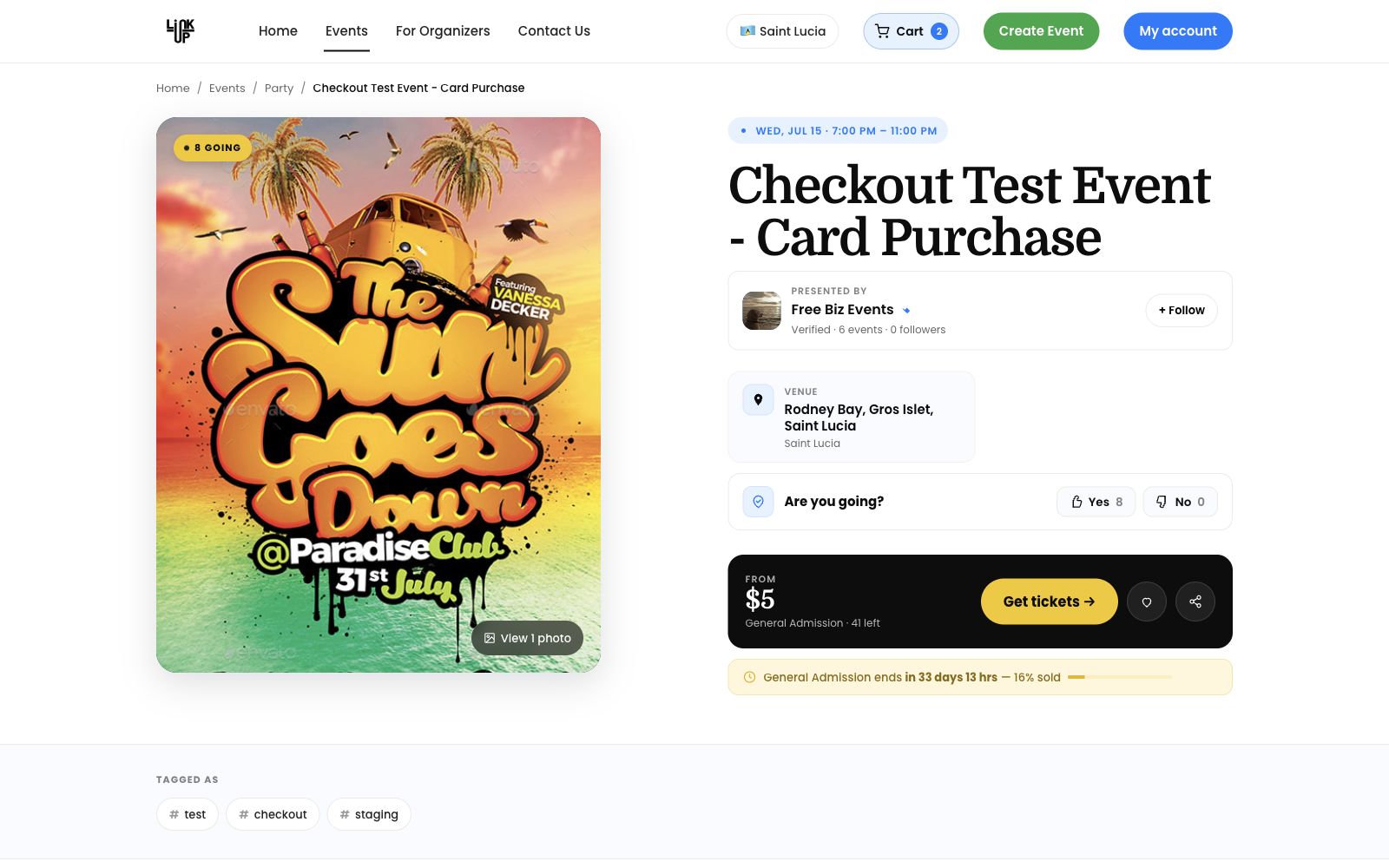
- Open Events.
- Use search to find events by name or keyword.
- Use category, country, date, duration, and price filters to narrow the list.
- Duration filters are case-consistent on the website.
- Country filters use the event country saved by the organizer or LinkUp Discover source.
- If a country filter looks wrong, contact LinkUp support with the event name.
Verification evidence
Event Browse, Search, And Filters, Event Duration Filter Retest.
Website screenshot
Last verified
Verified against the staging website on 2026-06-13. Mobile apps were not tested in this pass.
Follow organizers
Public help
- Sign in as an attendee.
- Open an organizer storefront or one of the organizer's event detail pages.
- Select Follow.
- The button changes to the followed state.
- You can return to your account to review followed organizers where available.
Verification evidence
Attendee Follow Organizer And RSVP Interest, Browser Attendee Sign-In, Follow, And RSVP Retest.
Last verified
Verified against the staging website on 2026-06-13. Mobile apps were not tested in this pass.
Save or show interest in an event
Public help
- Sign in and open an event detail page.
- Use the event's RSVP/interest action.
- The action updates to show your selected state.
- RSVP/interest is separate from buying a ticket. You still need to complete checkout for ticketed entry.
- Going count may include attendee interest and confirmed ticket activity, but LinkUp avoids double-counting the same signed-in attendee.
- If you already hold a ticket, the RSVP/interest state is still managed separately from your ticket in Account.
Verification evidence
Attendee Follow Organizer And RSVP Interest, Browser Attendee Sign-In, Follow, And RSVP Retest.
Website screenshot
Last verified
Verified against the staging website on 2026-06-13. Mobile apps were not tested in this pass.
Understand curated events from LinkUp Discover
Public help
Some events may appear because LinkUp discovered public event information and curated it for the local market.
- Look for signs that the event is curated, external, or not yet claimed.
[VERIFY: confirm public labels] - Check whether tickets are sold on LinkUp or through an external link.
- Confirm event details before attending.
- Contact LinkUp support if the event appears incorrect or outdated.
Expected LinkUp behavior
LinkUp should distinguish curated events from verified organizer-owned events and avoid implying ownership before a claim is approved.
Implementation status
| Expected behavior | Status | Surface | Manual check |
|---|---|---|---|
| Feature behavior should match this article. | Needs Verification | Public web / User App / Backend | Run the article steps in a test account. |
| Unconfirmed labels are marked with verification notes. | Implemented | BookStack | Search this page for [VERIFY:. |
Verification checklist
- Run the steps with a test attendee.
- Confirm exact UI labels.
- Check any related admin/order record if the feature changes data.
Gaps / notes
- This is a starter article and needs live UI review before public publishing.
Confirm event details before attending
Public help
Always confirm event details before leaving for the venue.
- Open your ticket or the event page.
- Check the event name, date, time, venue, age limit, and ticket type.
- Check whether the event has been cancelled, postponed, or moved.
- Contact the organizer or LinkUp support if something looks wrong.
Expected LinkUp behavior
LinkUp should keep event details current and make important changes visible before the event.
Implementation status
| Expected behavior | Status | Surface | Manual check |
|---|---|---|---|
| Feature behavior should match this article. | Needs Verification | Public web / User App / Backend | Run the article steps in a test account. |
| Unconfirmed labels are marked with verification notes. | Implemented | BookStack | Search this page for [VERIFY:. |
Verification checklist
- Run the steps with a test attendee.
- Confirm exact UI labels.
- Check any related admin/order record if the feature changes data.
Gaps / notes
- This is a starter article and needs live UI review before public publishing.
Find your QR code
Public help
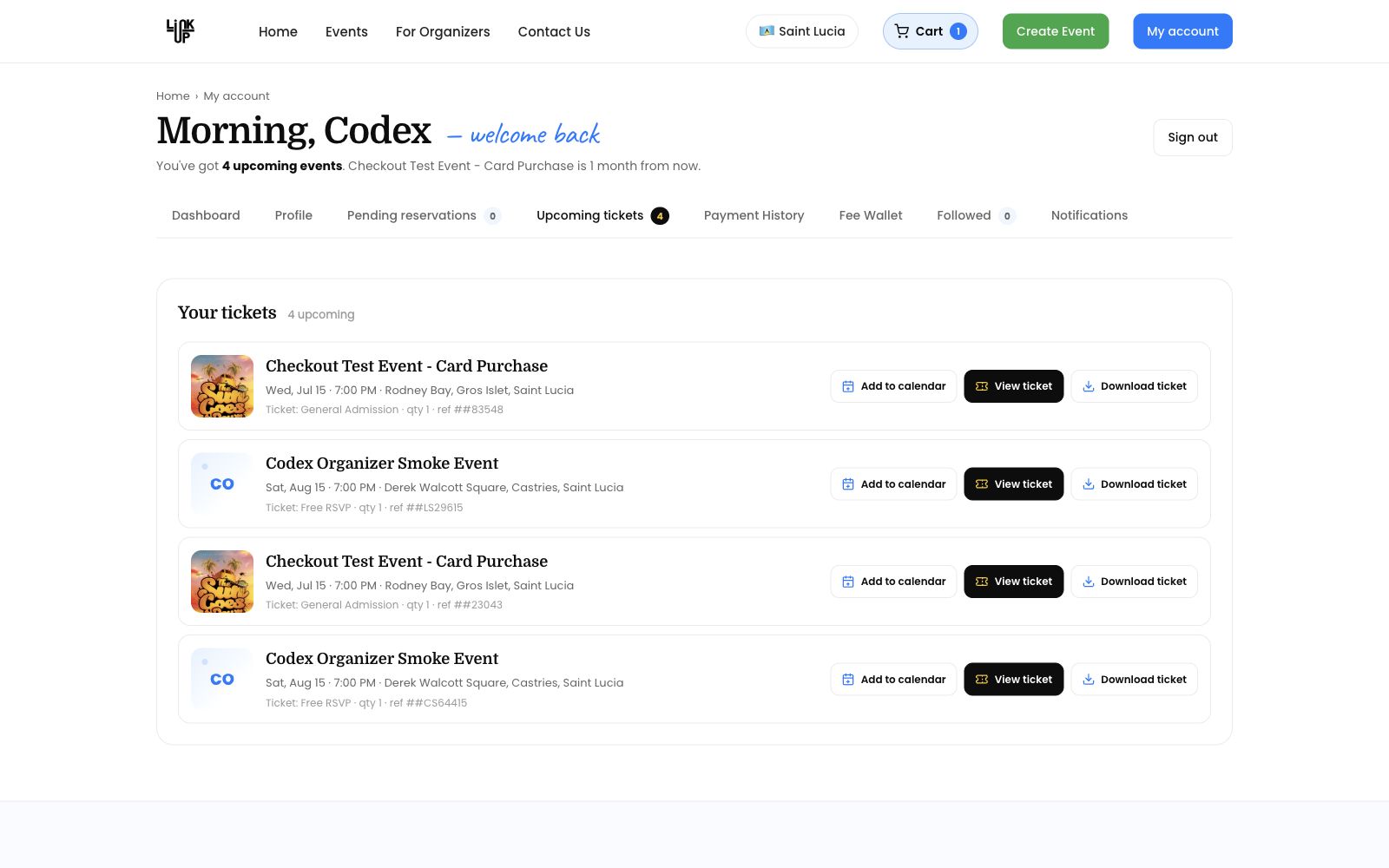
- Sign in and open Account.
- Open your tickets or completed order.
- Completed ticket orders show ticket links and QR code access.
- The QR code is only valid for completed tickets. Expired, pending, fee-only, or organizer-payment-incomplete orders should not be treated as valid entry tickets.
- Show the QR code at the door when the event team scans tickets.
Verification evidence
Attendee Ticket QR And Download Templates, Ticket Confirmation Email QR Fallback, Scanner Door Operations: QR Validation, Duplicate, Wrong Event.
Website screenshot
Last verified
Verified against the staging website on 2026-06-13. Mobile apps were not tested in this pass.
Download or save your ticket
Public help
- Sign in and open Account.
- Open the completed ticket order.
- Use the ticket page or download link to view/save the ticket PDF.
- Signed QR codes are included in the website ticket, single-ticket view, PDF, and email fallback paths.
- Do not rely on wallet support unless LinkUp adds and verifies that option separately.
Verification evidence
Attendee Ticket QR And Download Templates, Ticket Confirmation Email QR Fallback.
Website screenshot
Last verified
Verified against the staging website on 2026-06-13. Mobile apps were not tested in this pass.
Understand a pending reservation
Public help
A pending reservation means your ticket is held while payment or organizer confirmation is still incomplete.
- Open your order or ticket list.
- Look for the reservation status.
- Read the payment instructions and deadline.
- Pay by the approved method before the hold expires.
- Wait for organizer confirmation if offline payment is required.
Expected LinkUp behavior
LinkUp should clearly show pending reservation status, hold deadline, and next steps.
Implementation status
| Expected behavior | Status | Surface | Manual check |
|---|---|---|---|
| Feature behavior should match this article. | Needs Verification | Public web / User App / Backend | Run the article steps in a test account. |
| Unconfirmed labels are marked with verification notes. | Implemented | BookStack | Search this page for [VERIFY:. |
Verification checklist
- Run the steps with a test attendee.
- Confirm exact UI labels.
- Check any related admin/order record if the feature changes data.
Gaps / notes
- This is a starter article and needs live UI review before public publishing.
Pay by cash or bank transfer
Public help
- Open checkout for an event that allows offline reservations.
- Choose cash or bank transfer if the organizer has enabled that method.
- Review the payable amount before confirming. The amount due offline may include the ticket price plus organizer taxes or required event fees.
- Pay this total directly to the organizer. It may be higher than the ticket price if taxes or organizer fees apply.
- Your reservation remains pending until the organizer confirms payment.
- If you do not pay or the hold expires, the reservation can expire and the tickets can be released.
Verification evidence
Offline Cash And Bank Transfer Reservations, Offline Cash And Bank Transfer Browser Checkout Retest.
Last verified
Verified against the staging website on 2026-06-13. Mobile apps were not tested in this pass.
Understand reservation hold times
Public help
- Online checkout gives you a limited time to finish payment after tickets are held.
- Offline cash or bank-transfer reservations can use an event-specific hold window.
- Event-specific offline holds are limited by the platform maximum.
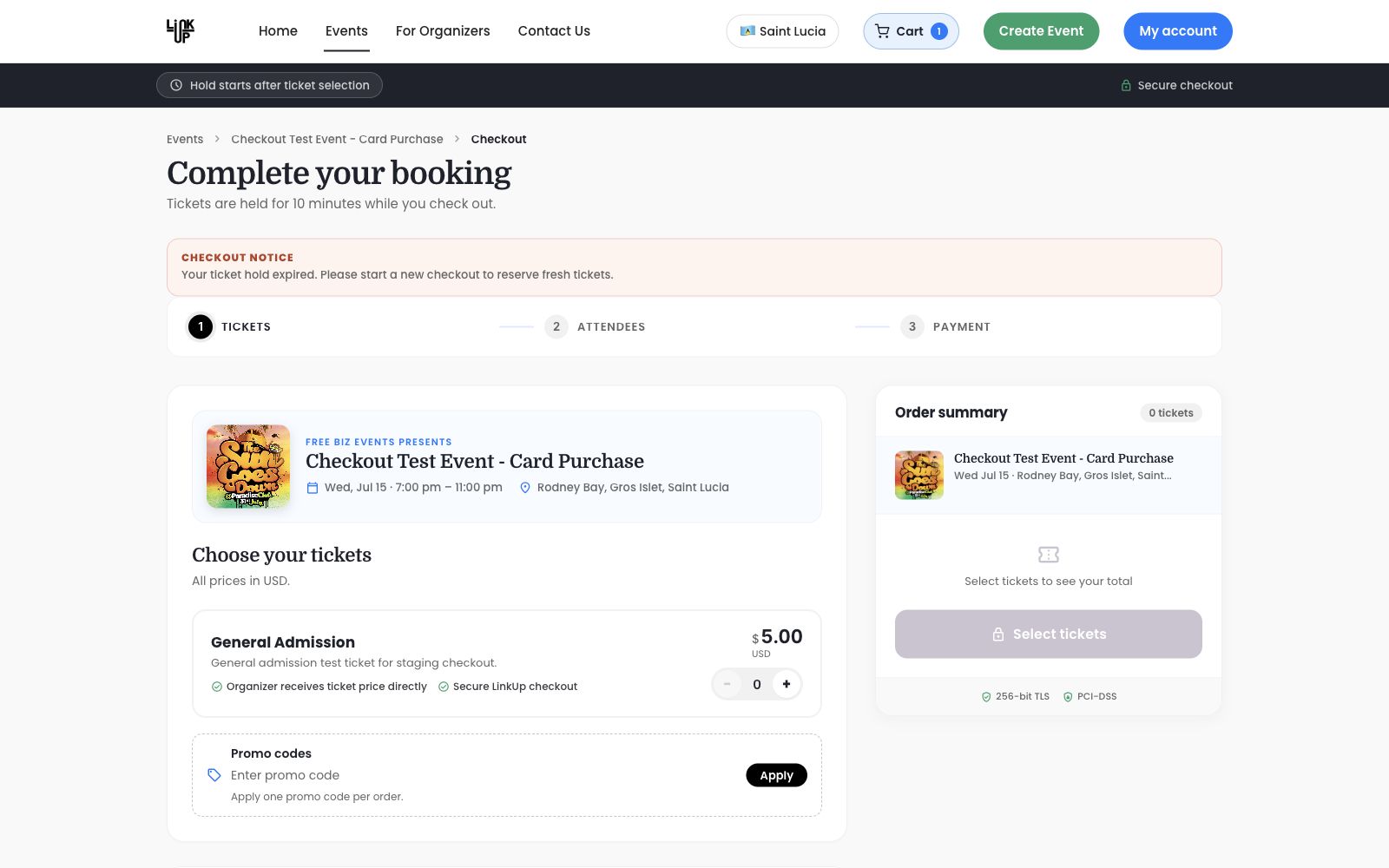
- The checkout page shows the hold time that applies to the current event/reservation.
- If the timer expires, the held tickets can be released for other attendees.
Verification evidence
Checkout Expiry, Offline Cash And Bank Transfer Browser Checkout Retest.
Website screenshot
Last verified
Verified against the staging website on 2026-06-13. Mobile apps were not tested in this pass.
What happens if a reservation expires
Public help
- When a checkout or reservation hold expires, LinkUp releases the held ticket inventory.
- The checkout page shows an expired-hold notice.
- Start a new checkout if tickets are still available.
- If you paid only the LinkUp Ticket Services fee but did not complete the organizer payment, your order is not a valid ticket.
- In eligible cases, LinkUp may record a fee credit after the incomplete order expires.
Verification evidence
Checkout Expiry, Expired Checkout Notice Display, Fee Paid, Organizer Payment Incomplete, And Failed Return Handling.
Website screenshot
Last verified
Verified against the staging website on 2026-06-13. Mobile apps were not tested in this pass.
What to bring to the door
Public help
Arrive prepared so door staff can check you in quickly.
- Bring the phone or email account that can show your ticket QR code.
- Bring a valid ID if the event has age or identity checks.
- Bring proof of payment if your reservation was confirmed offline.
- Arrive with enough time for scanning and entry checks.
Expected LinkUp behavior
LinkUp should give attendees enough ticket information to pass door validation when the ticket is valid.
Implementation status
| Expected behavior | Status | Surface | Manual check |
|---|---|---|---|
| Feature behavior should match this article. | Needs Verification | Public web / User App / Backend | Run the article steps in a test account. |
| Unconfirmed labels are marked with verification notes. | Implemented | BookStack | Search this page for [VERIFY:. |
Verification checklist
- Run the steps with a test attendee.
- Confirm exact UI labels.
- Check any related admin/order record if the feature changes data.
Gaps / notes
- This is a starter article and needs live UI review before public publishing.
What happens if your QR code was already scanned
Public help
A duplicate scan warning means the ticket may already have been used.
- Stay at the entry point and speak with door staff.
- Show your order details and ID if requested.
- Do not buy a replacement ticket until the organizer or LinkUp confirms what happened.
- Ask staff to escalate the issue if you believe the scan result is wrong.
Expected LinkUp behavior
LinkUp should block duplicate entry and provide enough scan history for staff to review disputes.
Implementation status
| Expected behavior | Status | Surface | Manual check |
|---|---|---|---|
| Feature behavior should match this article. | Needs Verification | Public web / User App / Backend | Run the article steps in a test account. |
| Unconfirmed labels are marked with verification notes. | Implemented | BookStack | Search this page for [VERIFY:. |
Verification checklist
- Run the steps with a test attendee.
- Confirm exact UI labels.
- Check any related admin/order record if the feature changes data.
Gaps / notes
- This is a starter article and needs live UI review before public publishing.
Get help at entry
Public help
Ask for help at the venue if your ticket cannot be scanned or found.
- Move out of the entry line if staff asks you to.
- Show your order confirmation, ticket email, or account screen.
- Confirm the event and ticket type.
- Ask door staff to contact the organizer or LinkUp support if needed.
Expected LinkUp behavior
LinkUp should support entry troubleshooting without allowing invalid or duplicate tickets through unchecked.
Implementation status
| Expected behavior | Status | Surface | Manual check |
|---|---|---|---|
| Feature behavior should match this article. | Needs Verification | Public web / User App / Backend | Run the article steps in a test account. |
| Unconfirmed labels are marked with verification notes. | Implemented | BookStack | Search this page for [VERIFY:. |
Verification checklist
- Run the steps with a test attendee.
- Confirm exact UI labels.
- Check any related admin/order record if the feature changes data.
Gaps / notes
- This is a starter article and needs live UI review before public publishing.
Understand refunds and event changes
Public help
Refunds depend on the event policy, payment method, and reason for the change.
- Check the event refund policy before buying.
- If the event is cancelled, wait for organizer or LinkUp instructions.
- If event details change, check whether the new details still work for you.
- Contact support with your order number if you need help.
Expected LinkUp behavior
LinkUp should preserve order history and support refund handling for eligible cases.
Implementation status
| Expected behavior | Status | Surface | Manual check |
|---|---|---|---|
| Feature behavior should match this article. | Needs Verification | Public web / User App / Backend | Run the article steps in a test account. |
| Unconfirmed labels are marked with verification notes. | Implemented | BookStack | Search this page for [VERIFY:. |
Verification checklist
- Run the steps with a test attendee.
- Confirm exact UI labels.
- Check any related admin/order record if the feature changes data.
Gaps / notes
- This is a starter article and needs live UI review before public publishing.
Export or delete your account data
Public help
Self-service account export and deletion controls are not fully live on the website yet. The account page may show privacy controls as disabled or coming soon. Until self-service export/delete is enabled, contact LinkUp support for help with privacy or account-data requests.
Verification evidence
Google Login And Account Data Privacy Controls.
Last verified
Verified against the staging website on 2026-06-13. Mobile apps were not tested in this pass.
Report suspicious activity
Public help
Report anything that looks like fraud, account misuse, or a fake event.
Expected LinkUp behavior
LinkUp should provide a path to report suspicious activity and review trust and safety issues.
Implementation status
| Expected behavior | Status | Surface | Manual check |
|---|---|---|---|
| Feature behavior should match this article. | Needs Verification | Public web / User App / Backend | Run the article steps in a test account. |
| Unconfirmed labels are marked with verification notes. | Implemented | BookStack | Search this page for [VERIFY:. |
Verification checklist
- Run the steps with a test attendee.
- Confirm exact UI labels.
- Check any related admin/order record if the feature changes data.
Gaps / notes
- This is a starter article and needs live UI review before public publishing.
Sign in or create an account with Google
Public help
Use Google sign-in when you want to create or access your LinkUp account with your Google email address.
- Open Sign in or Create account.
- Select Continue with Google.
- Choose your Google account and approve the sign-in prompt.
- LinkUp signs you in and opens your account.
Important
LinkUp does not send a separate verification email for Google sign-in. Google already verifies the email address before handing the account to LinkUp.
If you previously created a LinkUp account with the same email address, Google sign-in may connect to that existing account.
If sign-in does not work
- Make sure you selected the same Google email address you use for LinkUp.
- Try signing in again from the same browser.
- Contact LinkUp support if you think tickets are under a different email address.
Verify your email after creating an account
Public help
If you create a LinkUp account with an email address and password, LinkUp may send a verification link to that email address.
- Check the inbox for the email address used during signup.
- Open the LinkUp verification email.
- Select the verification link.
- Return to LinkUp and sign in again if needed.
If you do not click the verification link
Your account may remain unverified. When verification is required, an unverified account cannot fully sign in until the email address is confirmed.
If you try to sign in before verifying, LinkUp may send a fresh verification email.
Google accounts
Google sign-in is different. LinkUp does not send a separate verification email for Google sign-in because Google verifies the email address.
Password rules for creating an account
Public help
Your LinkUp password must use all of these rules:
- 8 to 20 characters.
- At least one lowercase letter.
- At least one uppercase letter.
- At least one number.
- At least one accepted special character.
Accepted special characters
You can use: @ $ ! % * # ? &
If a special character is not accepted
Use one of the accepted characters listed above. LinkUp will show an error if the password uses a special character that is not supported.
Pay the LinkUp fee and organizer payment
Public help
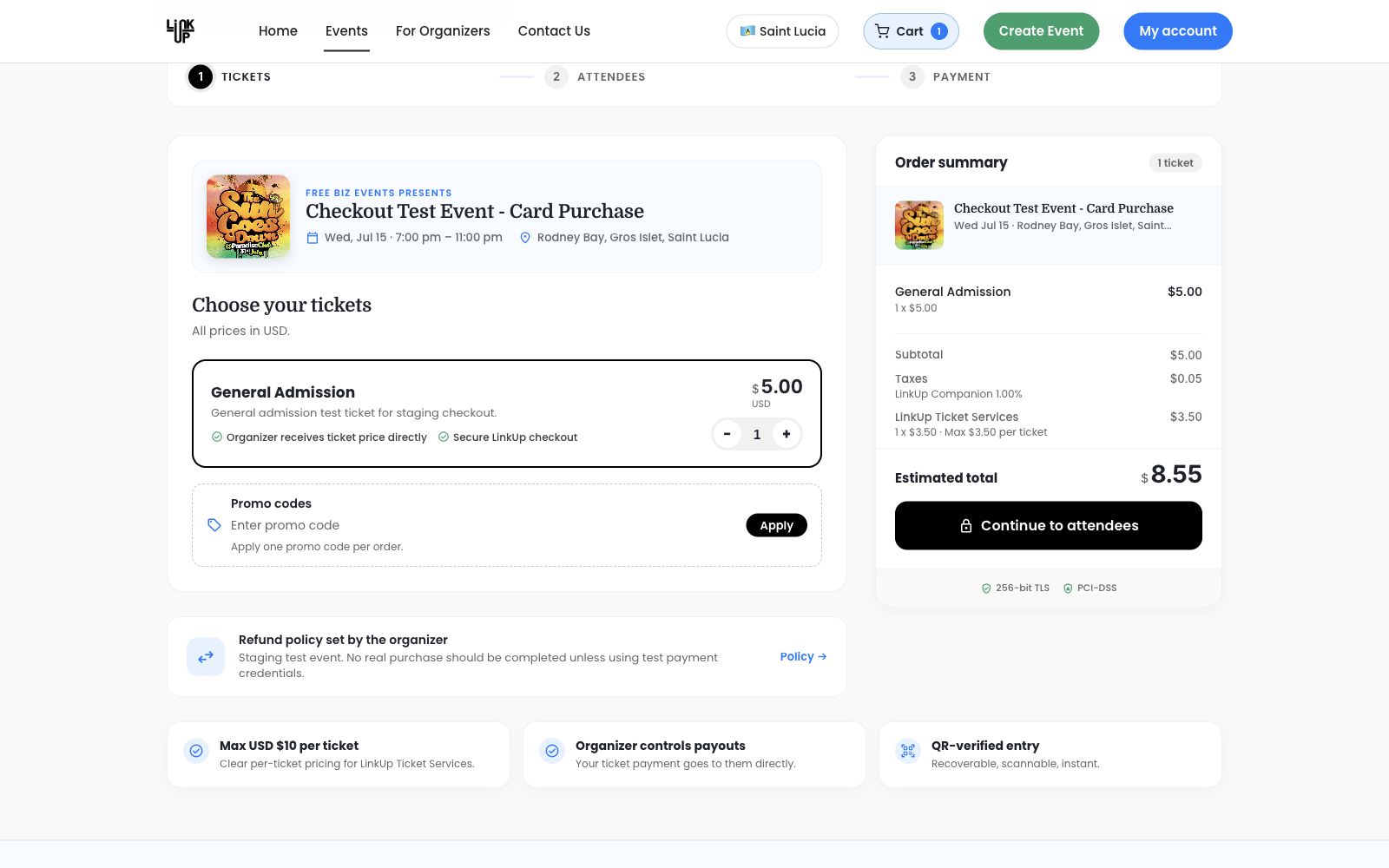
- Select your tickets and review checkout totals.
- For paid online checkout, LinkUp may split payment into two steps:
- LinkUp Ticket Services fee
- Organizer ticket payment
- Complete both payment steps before the checkout timer expires.
- Tickets are issued only after both the LinkUp fee and organizer payment are complete.
- If you return to checkout while the hold is still active, LinkUp preserves the ticket subtotal, coupon code, discount, tax, organizer amount, and customer total.
- If a provider return fails, the website restores the cart and shows a checkout message instead of a server error.
Verification evidence
Paid Checkout Promo And Two-Step Order Pricing, Fee Paid, Organizer Payment Incomplete, And Failed Return Handling.
Website screenshot
Last verified
Verified against the staging website on 2026-06-13. Mobile apps were not tested in this pass.
If you paid the LinkUp fee but do not have a ticket
Public help
Paying the LinkUp Ticket Services fee alone does not create a valid ticket. You must also complete the organizer payment before the hold expires.
If this happens
- Return to checkout while the hold is active and finish the organizer payment.
- If the hold expired, start a new checkout if tickets are still available.
- If you believe you were charged but do not have a ticket, contact LinkUp support with the event name, order reference, payment timing, and the email used at checkout.
Internal note: Staging created fee credit ID
1for original order ID45after fee-paid/organizer-incomplete expiry.
Verification evidence
Fee Paid, Organizer Payment Incomplete, And Failed Return Handling.
Last verified
Verified against the staging website on 2026-06-13. Mobile apps were not tested in this pass.
Use a promo code at checkout
Public help
- Enter the promo code before completing payment.
- Apply the promo and review the updated checkout totals.
- Promo discounts reduce selected ticket/organizer amounts.
- Promo codes reduce eligible ticket prices. They do not reduce LinkUp Ticket Services fees unless the promo specifically says so.
- In two-step checkout, the coupon ID, code, discount, and decimal money fields are preserved when returning to the order.
Verification evidence
Organizer Promo Codes And Checkout Application, Paid Checkout Promo And Two-Step Order Pricing.
Website screenshot
Last verified
Verified against the staging website on 2026-06-13. Mobile apps were not tested in this pass.
Pay the organizer by PayPal
Public help
Some paid events use PayPal for the organizer ticket payment.
- Complete the LinkUp Ticket Services payment first if shown.
- Select Pay Organizer Ticket Payment.
- Complete the PayPal checkout screen.
- Return to LinkUp after PayPal confirms the payment.
- Wait for LinkUp to issue your ticket.
PayPal account or card
PayPal may allow payment with a PayPal account or card depending on your country, PayPal rules, and the organizer setup.
If PayPal does not accept the payment
Try another PayPal funding source or contact LinkUp support before starting multiple orders.